

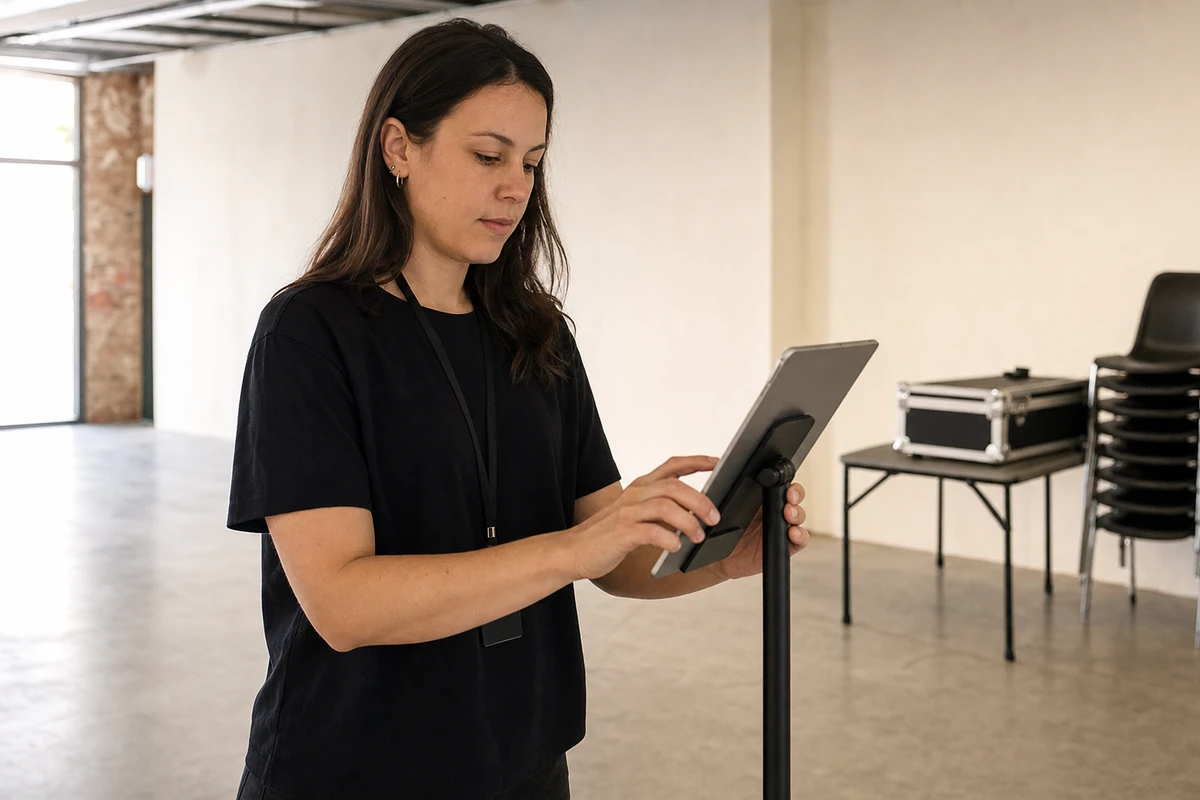
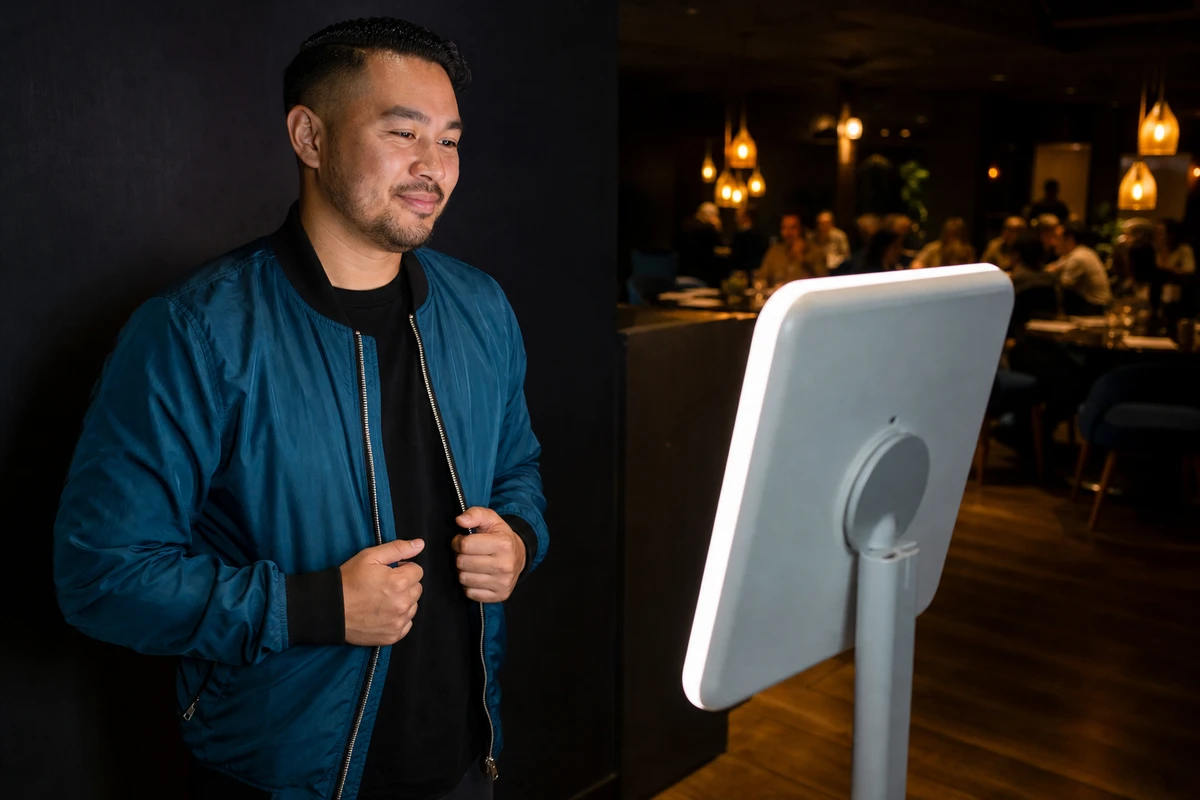
A guest walks up to an iPad mounted on a stand near the entrance of a weekend pop-up shop. The screen shows one thing: a photo experience, mid-animation, asking for a tap. The guest takes a photo, types an email to get a copy, and moves on. What the guest never reaches is the rest of the iPad. No home screen, no Safari, no Settings, no camera roll. The device does one job and nothing else.
Getting an iPad to behave that way, what most operators call iPad kiosk mode, comes down to two methods. Guided Access is built into every iPad, costs nothing, and takes about two minutes to switch on. Single App Mode is the enforced version, applied through device supervision and a Mobile Device Management (MDM) profile. For a single iPad at a staffed event or short activation, Guided Access is the right tool, and this guide covers it completely. One catch belongs at the top: Guided Access is a session, not a permanent state, and any reboot ends it. What follows is the full setup, the pre-deployment checklist most guides skip, and a plain rule for when a session-based lock stops being enough.
What “iPad Kiosk Mode” Actually Means
An operator who searches “iPad kiosk mode” usually expects a single switch buried in Settings. There isn’t one. “Kiosk mode” is not Apple’s term; it is shorthand borrowed from the Windows world, where Microsoft does ship a feature by that name. On an iPad, the same outcome is reached through one of two genuinely different mechanisms.
The first is Guided Access, an Accessibility feature on every iPad. It needs no account, no computer, and no special enrollment, and it locks the device to whatever app is in the foreground for the length of a session that staff start and end by hand. The second is Single App Mode, a managed restriction that only works on a supervised iPad and is controlled by an MDM profile. As the MDM vendor SimpleMDM describes it in its iOS kiosk mode explainer (2025), Single App Mode keeps one app locked in the foreground with no exit options, managed remotely by an administrator.
The difference that matters is supervised versus unsupervised, and session-based versus profile-enforced. One point is worth stating plainly: Apple ships no standalone “kiosk mode” app. The third-party “kiosk apps” sold in the App Store cannot lock a device on their own either; each one still runs inside Guided Access or depends on an MDM-applied profile to contain the iPad. Most operators should start with Guided Access and know the point at which they have outgrown it.
How to Lock an iPad to One App With Guided Access
The app is loaded, the iPad sits on its stand, and staff need it to stay on that one screen while guests come and go. Guided Access does this in eight steps, all documented on Apple’s Guided Access support page (2026).
1. Turn the feature on
- Turn the feature on. Open Settings, go to Accessibility, then Guided Access, and toggle it on.
- Set a Guided Access passcode. Under Passcode Settings, choose Set Guided Access Passcode. This passcode should not match the device’s screen-lock code, and no walk-up guest should know it. It is the only thing between a curious guest and a wide-open iPad.
- Decide on Face ID or Touch ID. The same screen offers the option to end a session with Face ID or Touch ID instead of the passcode. It is faster for staff and optional.
- Open the app to lock to. Launch the photo experience, survey, check-in, or point-of-sale app and leave it in the foreground.
- Start the session. Triple-click the Accessibility Shortcut button: the top button on Face ID iPads, the Home button on older iPads that still have one. Guides that tell every reader to “triple-click the Home button” predate Face ID iPads and are wrong for most current hardware. If Guided Access is the only Accessibility shortcut enabled, the triple-click jumps straight in; if several are enabled, a short menu appears first.
- Set the Options before tapping Start. This panel is where the real hardening happens. Disable the sleep/wake button and the volume buttons so guests cannot dim or silence the device. Turn off Motion to lock screen rotation. Set Touch and, if needed, a Time Limit. To make part of the screen ignore taps, such as a settings gear or an in-app exit link, circle that area with a finger; the selection can then be dragged or resized.
- Tap Start. The session begins and the iPad is locked to the app.
- End the session. Triple-click the same button, enter the Guided Access passcode (or use Face ID or Touch ID if that was enabled), and tap End.
It is genuinely a two-minute job, which is exactly why Guided Access is the right answer for a staffed, single-event iPad.
The Setup Checklist Most Guides Skip
Most walkthroughs stop at “tap Start.” The gap shows up six hours later, when a notification slides in over a capture form, a guest pulls down Control Center, or the screen has quietly dimmed to near-black. A locked app is not a hardened device. The kiosk-software vendor Kiosk Group keeps the most thorough field guide to these public-use exit vectors (2024), and a few of them matter before any iPad goes live.
Lock Down System Controls
A Guided Access session already suppresses Control Center, the Notification Center, and the App Switcher, so guests cannot swipe their way out. As a backup, set Settings, Control Center, Access Within Apps to Off. “Hey Siri” is the sneakier hole: a kiosk iPad is almost always plugged in, and Kiosk Group notes that a charging device keeps listening for “Hey Siri,” giving a guest a voice route around the app. Turn it off under Settings, Siri & Search.
The screen itself causes the most embarrassing failure. When an iPad sits in an enclosure that covers the ambient light sensor, the device reads the room as dark and dims itself, so a walk-up guest sees what looks like a dead screen. That dimming cannot be switched off remotely later, so auto-brightness has to be disabled before deployment, and the iPad should be tested inside the actual enclosure rather than on a desk. Inside Guided Access settings, the Display Auto-Lock option governs whether the screen sleeps mid-session; for good measure, set the device-level Settings, Display & Brightness, Auto-Lock to Never.
Two more details protect data and uptime. Disable Predictive Text under Settings, General, Keyboard, because predictive suggestions can retain one guest’s typed input and surface it to the next, a real leak on an email-capture form. Keep the iPad on a permanent, physically secured charger. Kiosk Group also advises against setting a device screen-lock passcode on a public iPad, since repeated wrong guesses by guests can lock it into a recovery state. An activation iPad that dims, sleeps, or surfaces a stranger’s email mid-capture is a lost contact and a worse brand impression than no kiosk at all.
The One Thing Guided Access Can’t Do: Survive a Reboot
Many operators believe that once Guided Access is on, the iPad is locked for good. It is not. Guided Access is a session, not a permanent device state, and anything that restarts the iPad ends that session. The device comes back to the lock screen with Guided Access off and every app reachable.
Four ordinary events restart a kiosk iPad in the field: the battery draining to 0% after a charger is knocked loose or an outlet is tripped, an iOS crash, an automatic iPadOS update installing overnight, and any power interruption to the room. The mechanism is simple. Because Guided Access is unsupervised and session-based, iPadOS holds no instruction to re-enter it on boot, so there is nothing to resume. Kiosk Group’s Guided Access versus Single App Mode comparison (2021) puts it plainly: after a battery-drain reboot, “a device in Guided Access mode will return to the Home screen and disable Guided Access.” The MDM vendor 42Gears states the same in its iPad kiosk mode overview (2026): “Restarting the iPad automatically exits Guided Access.”
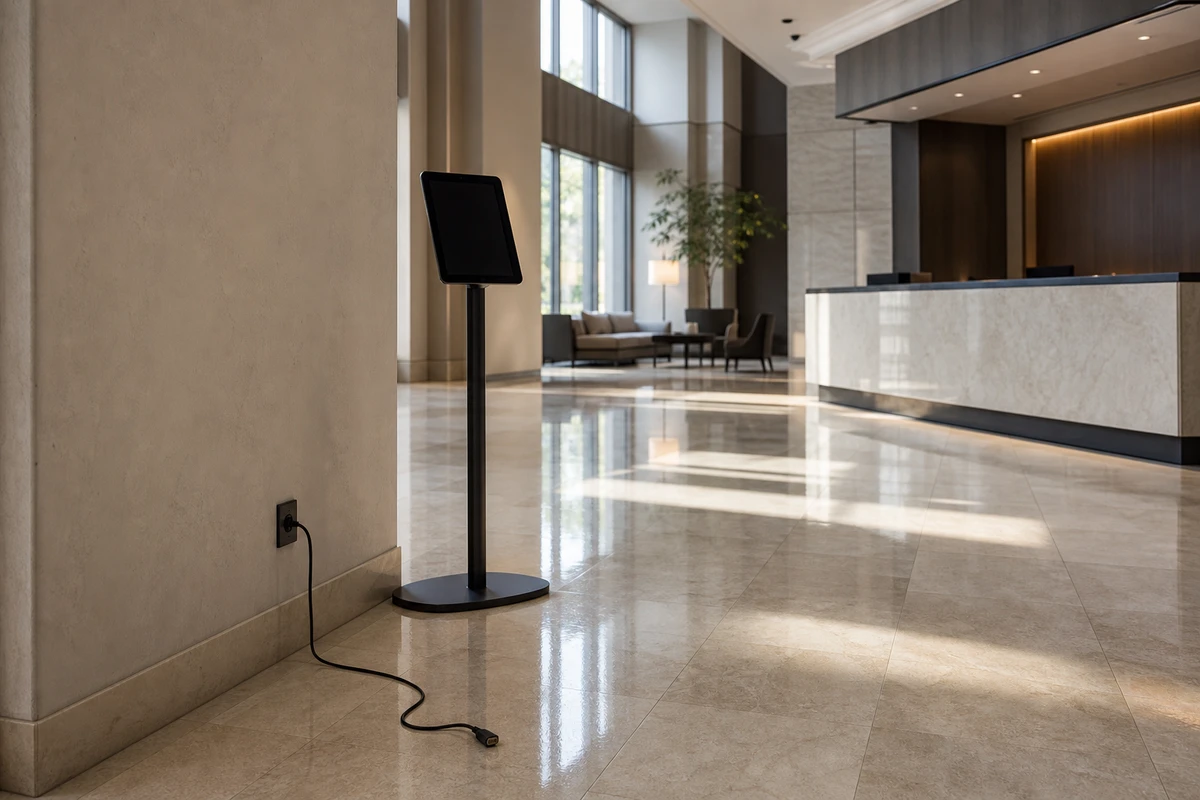
A photo activation runs on an iPad in a hotel lobby. Overnight, a cleaning crew unplugs it to run a vacuum and forgets to plug it back in. The battery drains, the iPad shuts down, and later it powers back up to a generic iOS home screen. Every walk-up guest the next morning meets that home screen instead of the experience, and the kiosk captures zero photos and zero contacts until a staff member happens to notice. Worse, the photos and email addresses captured before the reboot now sit on an unlocked iPad that anyone can pick up. “Locked down” and “locked down and self-healing” are different guarantees, and only the second is safe to leave alone.
When to Upgrade to Single App Mode (and What It Costs)
Single App Mode survives a reboot for the exact reason Guided Access does not: it is enforced by a configuration profile on a supervised device, not by a session a person started. Apple’s own App Lock deployment guide (2022) states it without ambiguity: “When this payload is active, the app reopens immediately after restarting a device.”
Upgrading means two concrete things
Upgrading means two concrete things. First, the iPad must be supervised, either by setting it up through Apple Configurator on a Mac or by enrolling it through Apple Business Manager. Configurator erases the device during the process and ties it to that specific Mac; Apple Business Manager enrolls devices automatically at first setup without a wipe. Second, an MDM service applies and enforces the Single App Mode profile over the air, and that same connection can push app updates, re-apply settings, and lock or locate a missing iPad. One related feature has its own name: Autonomous Single App Mode lets a purpose-built app lock and release the device itself, but only if the app was developed for it and the MDM profile permits that app.
The honest decision rule
The honest decision rule:
- Staffed, single event or short run, one or a few iPads: Guided Access. Paying for MDM here is wasted money.
- Unattended at any point, multi-day or always-on, more than a handful of devices, or holding revenue or customer data: Single App Mode through MDM.
The always-on case is not hypothetical
The always-on case is not hypothetical. A hotel running a photo activation as a permanent lobby fixture is one common version, and Simple Booth’s HALO kit is an iPad photo-booth app built for exactly that: its ongoing install at the W Hotel Austin has drawn 31,730 participants, a multi-day unattended run no staff-started Guided Access session could hold.
The cost is smaller than most operators expect. Apple-device MDM runs roughly $1.50 to $4 per device per month from named vendors: SimpleMDM lists $2.50 per device on its annual plan ($3 month-to-month) with no minimum, Jamf Now starts at $4, and Mosyle lists its Fuse tier at $1.50, though billed for a minimum of 30 licenses.
The minimum changes the math: a 10-iPad rollout pays a no-minimum vendor for exactly 10 devices, so SimpleMDM’s annual rate lands at about $300 a year and Jamf Now at $480, while Mosyle’s lower headline price only applies once a fleet clears 30 devices. A small single-location operator can avoid the cost entirely, since Mosyle’s free tier covers up to 30 devices. Set any of those figures against one unattended iPad sitting open in public, a full day of dead capture, or a device a stranger has tampered with, and the math is not close. One operational footnote: apps cannot update while Single App Mode is active, so updates have to be scheduled in a brief maintenance window.
An iPad on a stand in public is only as professional as the lock behind it. For a staffed activation, Guided Access and the pre-deployment checklist are the whole job. For anything left unattended or running always-on, Single App Mode through MDM is not an upgrade so much as the baseline, because the most common kiosk failure is not a guest prying their way out. It is a quiet overnight reboot letting the iPad out on its own.
Sources
- Apple Support (2026). “Use Guided Access on iPhone or iPad.” https://support.apple.com/en-us/111795
- Apple Support (2022). “App Lock device management payload settings for iPhone, iPad, Shared iPad, or Apple TV.” https://support.apple.com/guide/deployment/app-lock-payload-settings-dep80a981/web
- Kiosk Group (2024). “Setting up an iOS device for public use.” https://support.kioskgroup.com/article/480-setting-up-an-ios-device-for-public-use
- Kiosk Group (2021). “Single App Mode.” https://support.kioskgroup.com/article/866-guided-access-vs-single-app-mode
- SimpleMDM (2025). “What is iOS kiosk mode? How to enable & manage Single App Mode.” https://simplemdm.com/blog/how-to-use-ios-single-app-mode/
- SimpleMDM (2026). “Transparent per-device pricing.” https://simplemdm.com/pricing/
- Jamf (2026). “Jamf pricing for business.” https://www.jamf.com/pricing/
- Mosyle (2026). “Mosyle Business pricing.” https://business.mosyle.com/pricing
- 42Gears Mobility Systems (2026). “iPad Kiosk Mode: 3 Ways to Lock Your iPads into Single App Mode.” https://www.42gears.com/blog/ipad-kiosk-app-lock-apps-on-ipad-single-app-mode/