
A home-decor retailer books a photo booth for a Saturday store relaunch. By the time the doors close, 240 people have stepped up to it, made a short clip or a print, and tapped an email address into the screen so the booth could send them a copy. On Monday morning all 240 addresses are sitting in a Mailchimp audience. Nobody typed them in, nobody exported a spreadsheet, and the store owner did not lift a finger.
That hand-off is a Mailchimp photo booth sync. When a guest finishes a booth session, the booth software makes a call to Mailchimp’s API and creates or updates a contact in a chosen audience, in real time. Switching it on takes about ten minutes in the booth software’s settings.
Using it well takes more thought. The sync creates a contact. It does not create a subscriber who is ready, willing, and legally cleared to receive marketing email. Treat those two as the same thing and a successful event turns into a deliverability problem that follows the sender for months. What follows is what the sync actually deposits in the audience, how to set it up so the record is usable, and how to send the first email without getting flagged as spam.
What a Mailchimp Photo Booth Sync Actually Does
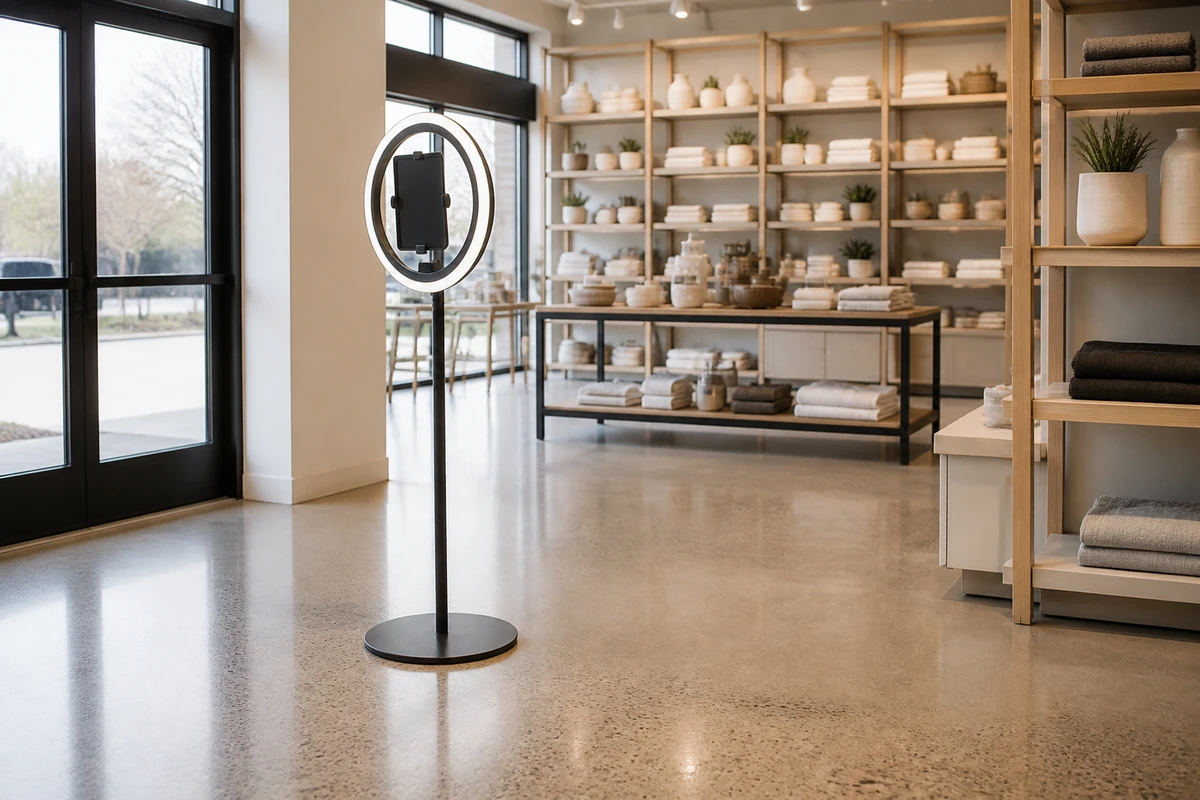
Before a guest sees their photo, most booths show a short form: email address, sometimes a name, sometimes a phone number or a birthday. That form is the data-capture screen, and it is the whole engine of the sync. When the session ends, the booth software sends the field values to Mailchimp through the Marketing API, and Mailchimp creates a new contact in the audience the operator selected, or updates an existing one if the email is already on file (Mailchimp, Marketing API reference). There is no batch, no nightly job, no manual import. The contact appears within seconds of the guest walking away.
The email address carries two jobs at once
The email address carries two jobs at once. It is the address the booth sends the photo to, and it is the identifier Mailchimp uses for the contact record. This is the reason booth capture rates run so high: a guest types an email because they want their picture, a fair transactional exchange. That fact matters, because it is also the reason the resulting contact is not what it looks like.
The fields that typically cross over are email, first and last name, phone number, postal code, and date of birth. That is a respectable contact record. But look at what does not cross over. The sync does not tag the contact with the event it came from. It does not store the venue, the date, or the booth preset. It does not record a consent timestamp or the wording the guest actually agreed to. And it does not route the contact through the confirmation step Mailchimp uses to verify an address. The contact lands in the audience as a bare record: a name and an email, no context, no proof of permission.
This is the misconception worth correcting before anything else. “Automatic sync” describes data moving from one system to another. It does not describe a list that is ready to mail. Every section below exists because of the gap between those two things.
How to Set Up the Sync, Step by Step
An operator who waits until the event to configure the sync will spend the first hour of a launch party troubleshooting instead of working the room. The setup is short, but two of its steps fail silently, so it belongs on the calendar a few days ahead. Menu labels differ across booth platforms; the sequence below holds for most of them.
1. Confirm the plan tier
- Confirm the plan tier. On most booth software, the Mailchimp integration sits behind a paid data-capture tier, not the entry-level plan. The Simple Booth integration, for example, is available only on its higher plan levels (Simple Booth help documentation, vendor-published). The operator’s own plan should be checked before the event, not at it.
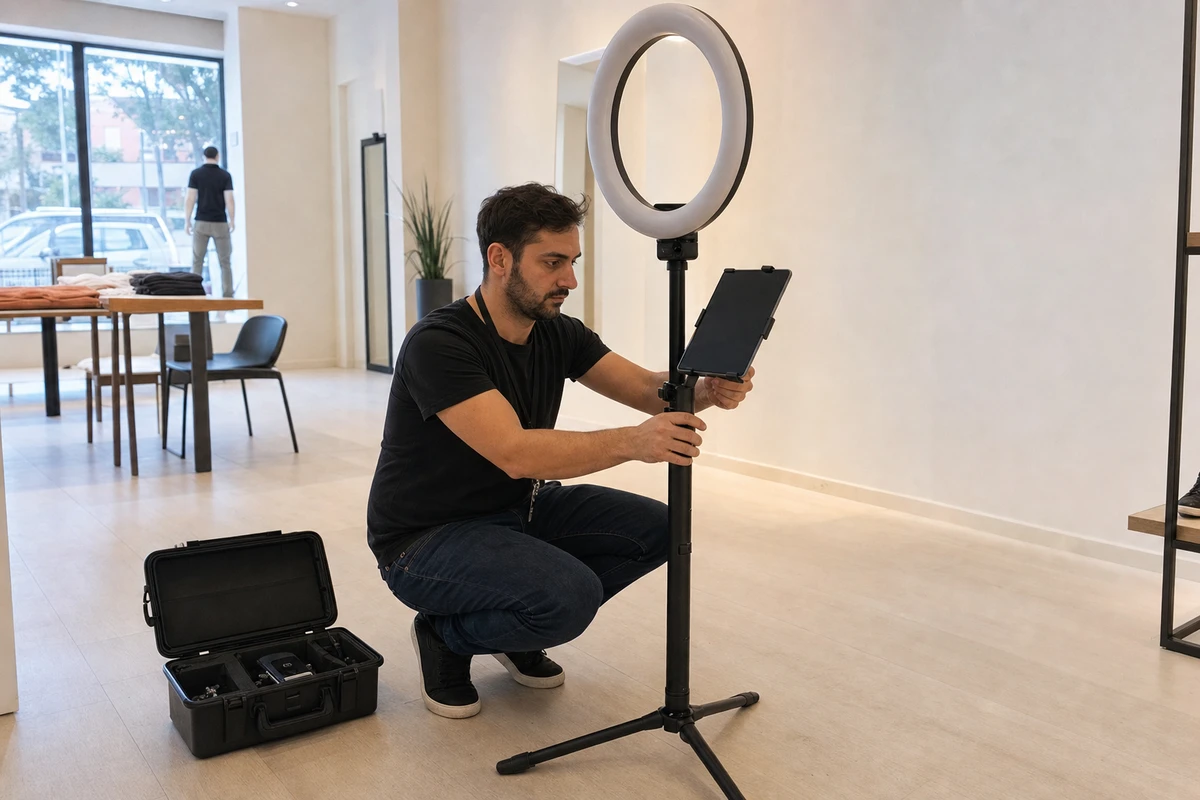
Connect the Mailchimp account once. This is a one-time login, done in the booth software’s integration settings, that authorizes the two systems to talk. It is separate from setting up any single event.
Enable Mailchimp for the specific event. The integration is switched on inside the data-capture settings for each event preset, not globally. On many platforms this has to be done in the web dashboard, not in the booth app running on the iPad. An operator who turns it on only inside the app gets no sync at all. This is the single most common setup mistake.
Choose the audience and map the fields. Pick which Mailchimp audience receives the contacts, and confirm which captured fields map to which Mailchimp merge fields.
Pre-configure merge fields that need it. Date of birth is the classic trap. Mailchimp expects a birthday merge field named in capitals and formatted as month and day; if the field name or format is wrong, birthdays fail to sync and no error is shown.
Run one test capture. Submit a dummy session and confirm the contact appears in the right audience with the right fields filled in. Finding a problem during a test costs five minutes. Finding it during the event costs the event.
Two of those steps fail without complaint. When contacts are not appearing at all, the preset is almost always enabled in the app instead of the web dashboard. When everything syncs except birthdays, the merge field is misnamed or misformatted. And re-capturing an email already in the audience updates that contact rather than creating a duplicate, which is the behavior an operator wants for repeat guests.
An Email for a Photo Is Not a Newsletter Opt-In
The prompt a guest answers at the booth is some version of “enter your email to get your photos.” Nobody reads that as “subscribe to our newsletter,” because it is not one. It is a transactional request: the guest hands over an address to receive a specific thing they asked for. The marketing relationship the operator wants was never offered and never accepted.
The mechanism turns that wording gap into a technical one. Mailchimp supports two ways of adding contacts. With single opt-in, a contact is added directly. With double opt-in, the contact has to click a confirmation link before they count as subscribed, which leaves the sender a record of consent. That confirmation step is built into Mailchimp’s hosted signup forms. A booth sync runs through the Marketing API instead, and by default it adds the contact directly, with no confirmation email sent (Mailchimp, “About Double Opt-in”). The contact is written straight in, and nothing in the record shows the guest agreed to be marketed to.

For operators handling any EU or UK contacts, that is a legal problem, not just an etiquette one. The UK Information Commissioner’s Office is explicit that consent must be specific to a purpose, and that consent for one purpose does not stretch to cover another. Its guidance uses an example that maps almost exactly onto a photo booth: a person who submits an online survey is “clearly indicating consent to process their data for the purposes of the survey itself,” but that act “will not, however, be enough by itself to show valid consent for any further uses of the information” (ICO, “What is valid consent?”). An email handed over for photo delivery is consent for photo delivery. It is not consent for a monthly promotion.
US operators are not exempt
US operators are not exempt. The FTC’s CAN-SPAM guidance separates a transactional or relationship message, which delivers something the recipient already agreed to, from a commercial message, whose purpose is to advertise (FTC, CAN-SPAM Act compliance guide). Sending the guest their booth photos is transactional. The promotional email that follows is commercial, and the transactional first contact does not convert the guest into a willing recipient of the second.
There are two clean fixes
There are two clean fixes. The stronger one captures marketing consent at the booth: a separate, unchecked box on the data-capture screen, with plain wording (“I’d like to receive offers and updates from [brand]”), kept distinct from the email field used for photo delivery. The other treats the first email as a re-permission step, covered in the final section. Whichever an operator picks, the consent should be documented (the event, the date, and the exact wording shown), because a list that can show where every address came from is a list that survives a complaint.
Tag Every Contact by Event, or the Lead Is Unusable
Six weeks after a grand opening, a marketer opens the Mailchimp audience to plan a campaign. The 240 addresses from the booth are still there, but they look identical to every website signup and trade-show badge scan in the same audience. No field says these people stood in a particular store on a particular Saturday. The marketer cannot write to them about the thing they actually did, because the record no longer remembers it.
The fix is a tag applied at the moment
The fix is a tag applied at the moment of sync: a short, fixed label that encodes the event and date, something like grand-opening-river-st-2026-05. A tagged contact can be found, segmented, suppressed, and written to as a group. An untagged one can only receive whatever goes to the whole audience.
This is not a photo-booth invention. OcularCMS documented the same discipline for event check-ins, tagging contacts registered and then checked-in so each state could trigger its own campaign, and noting plainly that “Mailchimp uses tags to help you send segmented campaigns” (OcularCMS, 2019). Event-based tagging is a known, working pattern; photo-booth operators are simply the group least likely to use it.
Not every booth platform can apply a tag during the sync. When it cannot, two workarounds hold. The first routes each event into its own dedicated Mailchimp audience instead of a shared one, which keeps events separable at the cost of more audiences to manage. The second segments after the fact by the date a contact was added, which works only when events are spaced far enough apart that their date ranges do not overlap. Tagging at sync is cleaner than either; the workarounds exist for platforms that force the issue.
The reason this matters is the next email. A tagged contact can receive a first message that names the event: “Thanks for stopping by the River Street opening.” An untagged contact can only receive a generic newsletter from a sender they do not recognize, which, as the next section shows, is the message most likely to be marked as spam.
How a Careless Sync Damages Email Deliverability
Here is the failure mode in one sentence. An operator captures 300 emails at an event, drops them into the main audience, and sends the next monthly newsletter to everyone. A meaningful share of those 300 do not recognize the sender, and they do the fastest thing available: mark it as spam.
Contact capture
That reaction has a hard cost, and the number is now public. In February 2024, Google and Yahoo both began enforcing bulk-sender requirements that cap the spam-complaint rate. Google’s guidance tells senders to “keep spam rates reported in Postmaster Tools below 0.30%” and to aim well below it, ideally under 0.10% (Google, Email sender guidelines). Yahoo sets the same 0.30% ceiling and watches the rate through its own complaint feedback loop (Yahoo, Sender Best Practices). Those are not large numbers. At a 0.30% cap, three complaints out of a thousand emails is the edge of trouble.
Now run the event through that math. The 300 booth contacts who never knowingly subscribed are a high-risk group. Suppose one in a hundred of them marks the newsletter as spam (an illustrative rate, since the real number depends on the audience and the wording). That is three complaints. Send the newsletter to those 300 alongside 700 genuine subscribers who almost never complain, and three complaints across 1,000 emails is a 0.30% rate: the edge of trouble, reached on the strength of the event contacts alone.
The damage does not stay with the event contacts. Complaints attach to the sender’s domain reputation, so once the rate climbs, mailbox providers route more of everything to spam, including the campaigns that go to long-standing, happy subscribers. Mailchimp, like any email service provider, also monitors complaint rates and can restrict an account that runs them high. One mishandled event can degrade the deliverability of every send that follows it.
The point is not that the sync is dangerous. The sync is fine. The danger is treating the contacts it produces as though they had subscribed. A tagged, consented, event-referencing email sent to the same 300 people draws complaints near zero, because the recipient remembers the booth and recognizes the sender. Same contacts, same audience, opposite outcome.
From a Synced Contact to Pipeline: The First Email
The booth contact is worth the most on the night it is captured and loses value every day after. The guest remembers the event, recognizes the brand, and is expecting their photo. That window is the moment to send the first email, and deliverability guidance consistently favors sending while the experience is fresh rather than weeks later, when the sender has become a stranger.
The best first email is not a pitch
The best first email is not a pitch. It is the photo delivery itself, or a link to the event gallery. It is wanted, it gets opened, and it rebuilds the connection before anything is sold. That same email can carry the re-permission step for any contact whose consent was only transactional: one clear line inviting them to opt in for ongoing updates, with only the people who click becoming marketing subscribers.
Built by hand, this is a chore for every event. Built once as a Mailchimp automation triggered by the event tag, it runs itself. Every future event reuses the same flow: the tag fires, the gallery email goes out, the opt-in invitation rides along. The tagging discipline from the previous section is what makes this possible, because the tag is the trigger.
Consider what a single event is worth when the contacts are handled this way. Take an event that captures 100 booth guests. Assume 40 of them accept the invitation to keep hearing from the brand, and assume each ongoing email contact is worth $50 in eventual revenue. (Both figures are illustrative; a retailer’s real opt-in rate and contact value belong in their place.) That is $2,000 of pipeline from one afternoon with a booth. The figure only holds if the contacts are tagged, if consent was handled, and if the first email landed while the event was still a memory. Skip those, and the same 100 contacts produce spam complaints instead of revenue.
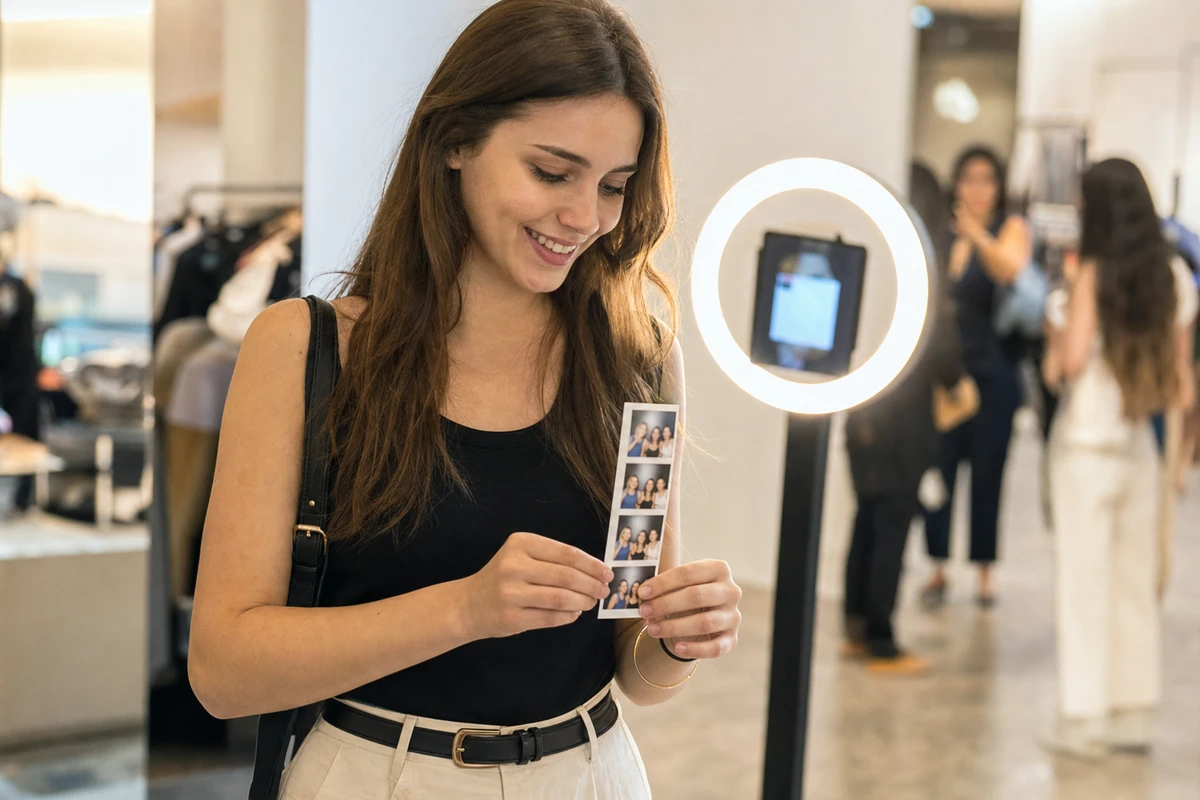
A photo booth sync is a lead-capture mechanism. The audience fills up by the end of the night with no effort at all. What turns that captured list into actual pipeline is the unglamorous work around it: the tag set at sync, the consent line on the screen, and the gallery email sent before noon the next day.
Sources
- Mailchimp. “Add member to list — Marketing API Reference.” https://mailchimp.com/developer/marketing/api/list-members/add-member-to-list/
- Mailchimp. “About Double Opt-in.” https://mailchimp.com/help/about-double-opt-in/
- Information Commissioner’s Office. “What is valid consent?” https://ico.org.uk/for-organisations/uk-gdpr-guidance-and-resources/lawful-basis/consent/what-is-valid-consent/
- Federal Trade Commission. “CAN-SPAM Act: A Compliance Guide for Business.” https://www.ftc.gov/business-guidance/resources/can-spam-act-compliance-guide-business
- OcularCMS (2019). “Mailchimp Integration for Events.” https://www.ocularcms.com/blog/3004/mailchimp-integration-for-events/
- Google. “Email sender guidelines.” https://support.google.com/mail/answer/81126
- Yahoo. “Sender Best Practices.” https://senders.yahooinc.com/best-practices/
- Simple Booth (vendor-published). “How Does the Mailchimp Integration Work?” https://help.simplebooth.com/en/articles/3025036-how-does-the-mailchimp-integration-work